

Locating OBDX Debug Settings/Files
Last updated: Oct 27, 2026
133
views

When experiencing vehicle connection issues, support may request OBDX log files from your PC for troubleshooting purposes.
Steps to Turn On OBDX Debug Setting
- Press Start, type run, then press Enter
- Type "%appdata%" (without double quotation marks) in the Run dialog
- Locate the "OBDX Pro" folder in the directory that opens
- Locate the "J2534\Settings" folder in the directory that opens
- Open the "OBDXFT_Config.cfg" in Notepad and set "LoggingEnabled" to "1".
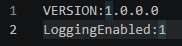
Steps to Locate OBDX Log Files
- Press Start, type run, then press Enter
- Type "%appdata%" (without double quotation marks) in the Run dialog
- Locate the "OBDX Pro" folder in the directory that opens
- Locate the "J2534\Logs" folder in the directory that opens
These log files contain diagnostic information that can help identify the cause of connection problems with your vehicle.

